
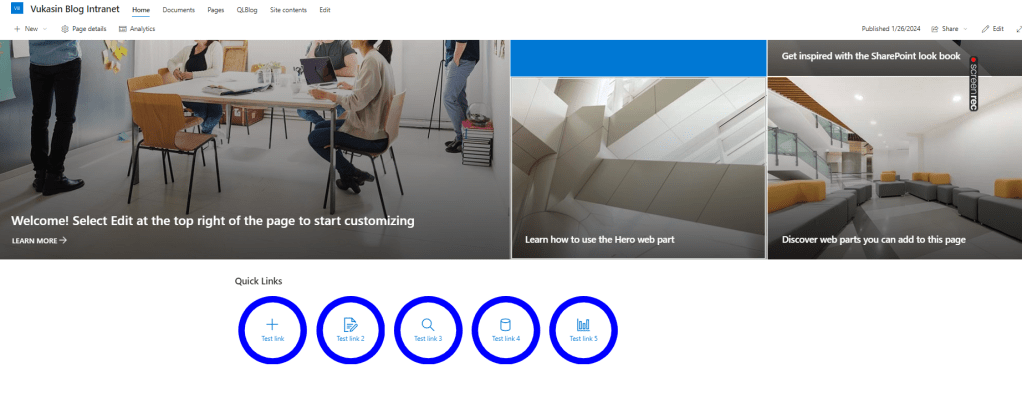
In this post, we’ll delve into the world of SharePoint Quick Links – a powerful feature that streamlines navigation and boosts productivity within your SharePoint Environment. Inspired by a YouTube video from Steve Corey on this topic (LINK), I’ve decided to try something similar and create custom Quick Links that will significantly differ in design from the SharePoint default Quick Links, all without using SPFx or any other SharePoint extension.
For this demo, I created a Communication site on SharePoint Online. Firstly, I tried to add Quick Links that SharePoint offers by default. :
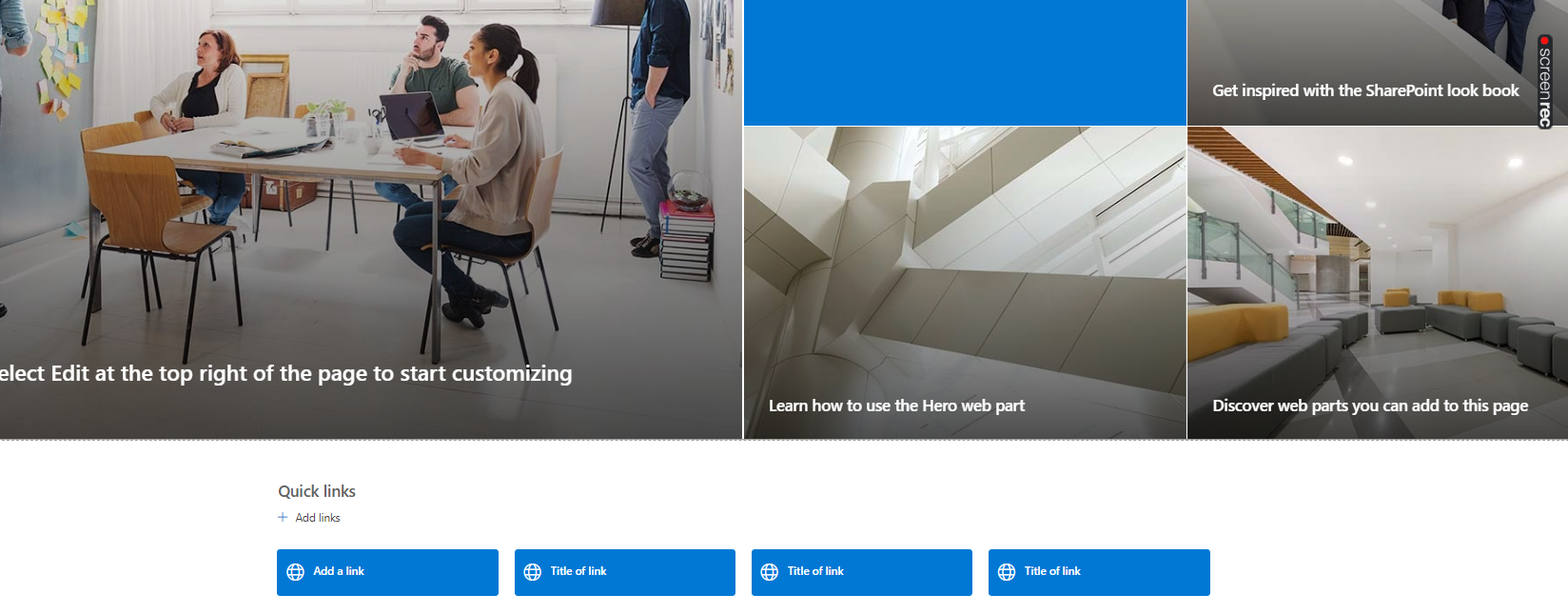
It looks good. We could choose from several layouts such as Compact, Filmstrip, Grid, Button, List, and Tiles. If I don’t need to customize this part and create an SPFx extension, I usually use the Button or Tiles layout. But what if we want an irregular design shape that isn’t supported by these layouts, and we don’t have time to customize it through code? That’s when JSON formatting of the list can come into play, which we can insert directly into the SharePoint page.
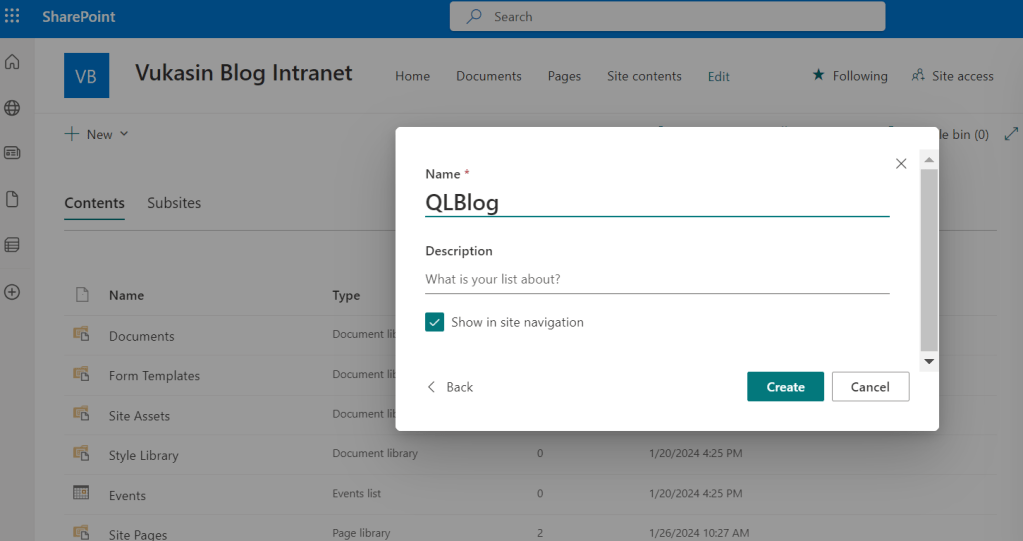
First step will be to create a custom SharePoint list :
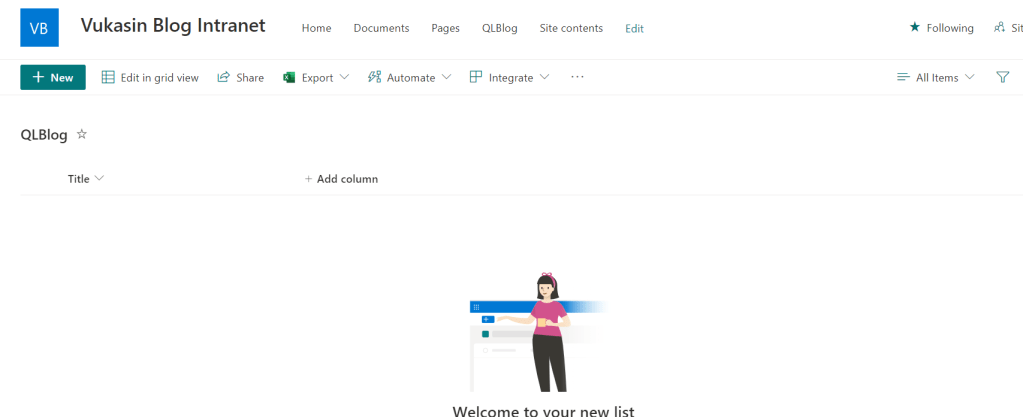
In this list, I will add 2 columns (URL and Icon). URL and Icon are of the Single Line of Text type.
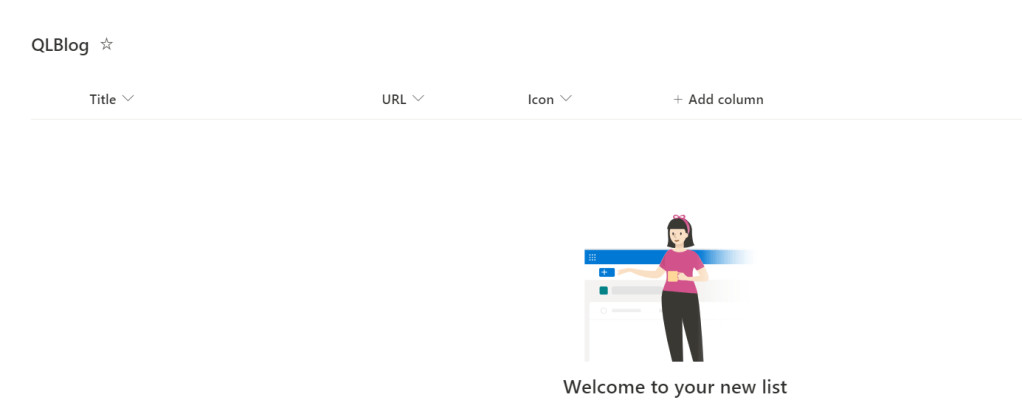
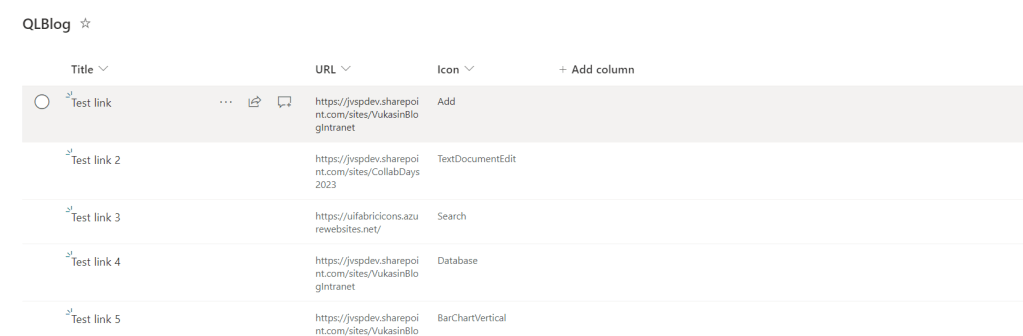
For Title I added Quick Links heading. URL is the hyperlink for Quick Links, and Icon is the name for the Fluent UI Icon. (LINK) Final list looks like this :
To display shapes for Quick Links, I used SVG, so I created a new List view with custom formating and copied SVG values in JSON format.
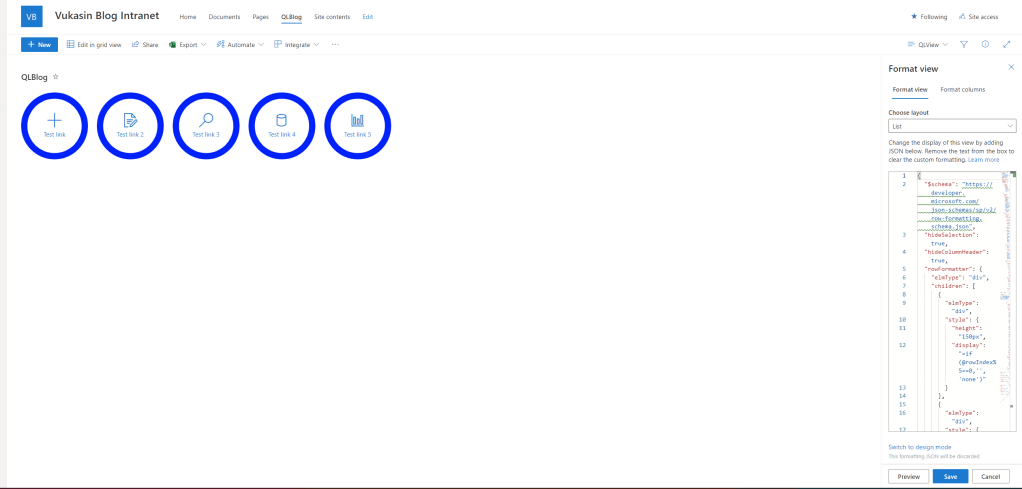
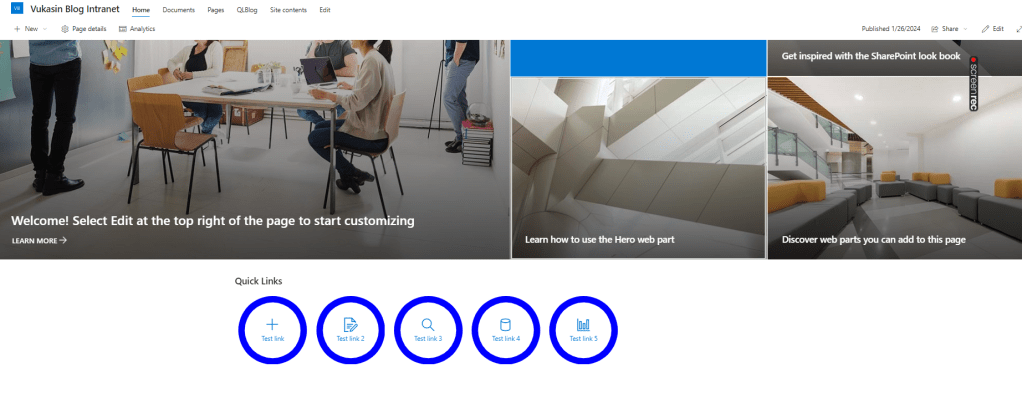
Final result :
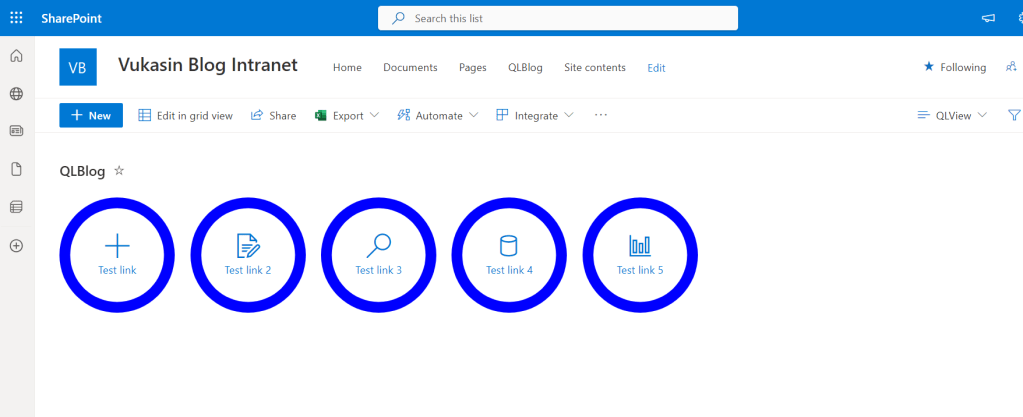
Final step will be to add this on Home page :
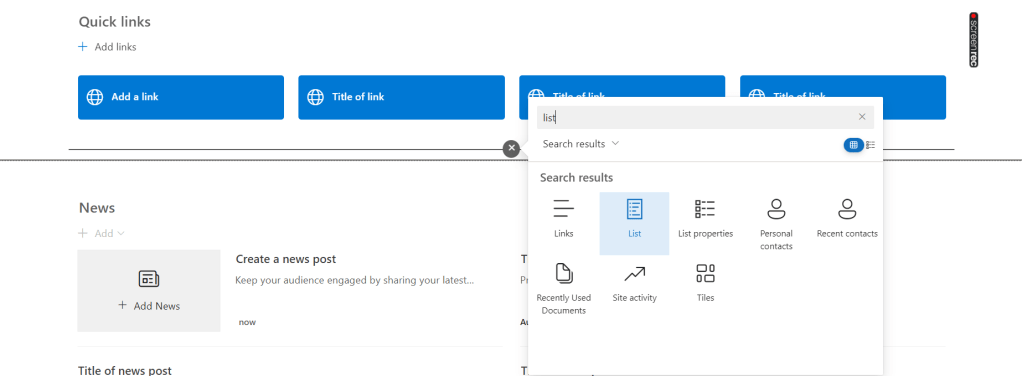
Then hide Title, See all and Command bar :
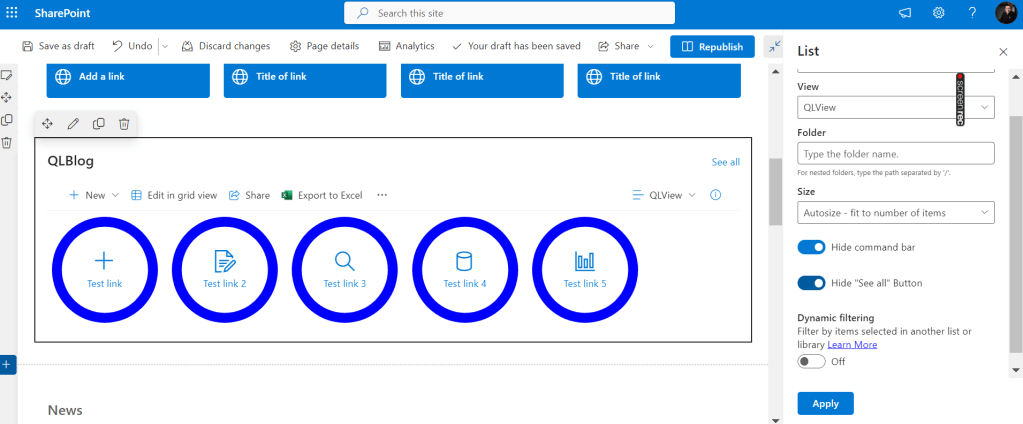
After this step, home page looks like this :
 Vukašin Jeremić - IT Blog
Leave a comment